
STUDIO GUIDE
How to switch your photography CRM without losing a client
To switch photography CRM safely, export everything from the old system first (clients, active projects, contracts, invoices and templates), import your clients into the new one, rebuild the forms, templates and automations you actually use, move or forward your phone number, then run both systems side by side until every active booking has moved across. Plan it for a quieter month, start new enquiries in the new system on a set day, and keep the old account until the last active job is finished. Here’s the full plan, with a checklist.
By the Allio team. Updated 22 October 2026.

Before you start: decide what you’re moving
You don’t have to move everything. Sort your data into three piles:
- Move: every client and lead with contact details, active bookings, upcoming sessions, unpaid invoices, and the templates and forms you use every week.
- Archive: finished projects, signed contracts and paid invoices. Export them as files and keep them safe, but they don’t need to live in the new system.
- Leave behind: templates and automations you stopped using years ago. Switching is a good time to tidy.
Step 1: export everything from the old system
Most studio CRMs let you export contacts as a spreadsheet (a CSV file). Check your current software’s help centre for how. Also save:
- Signed contracts as PDFs
- Invoices and payment history, for your records and your accountant
- Questionnaire answers for upcoming sessions
- Your email, text and contract templates (copy the text into a document)
- A list of every automation: what triggers it and what it sends
Do the export before you cancel anything. Some systems limit access once a subscription ends.
Step 2: clean the spreadsheet
Open the export and tidy it before you import. Remove duplicates and test contacts. Make sure names, emails and phone numbers are in their own columns. Add columns for what matters to your studio, such as session type, due date for newborn clients, or pet names. Add a column that marks past clients and current leads, so you can treat them differently later.
Step 3: import your clients
Import the spreadsheet and map each column to a field in the new system. Add a tag to every imported contact (such as “imported october”) so you can find them later. Import a small test file of ten contacts first, check it looks right, then import the rest.
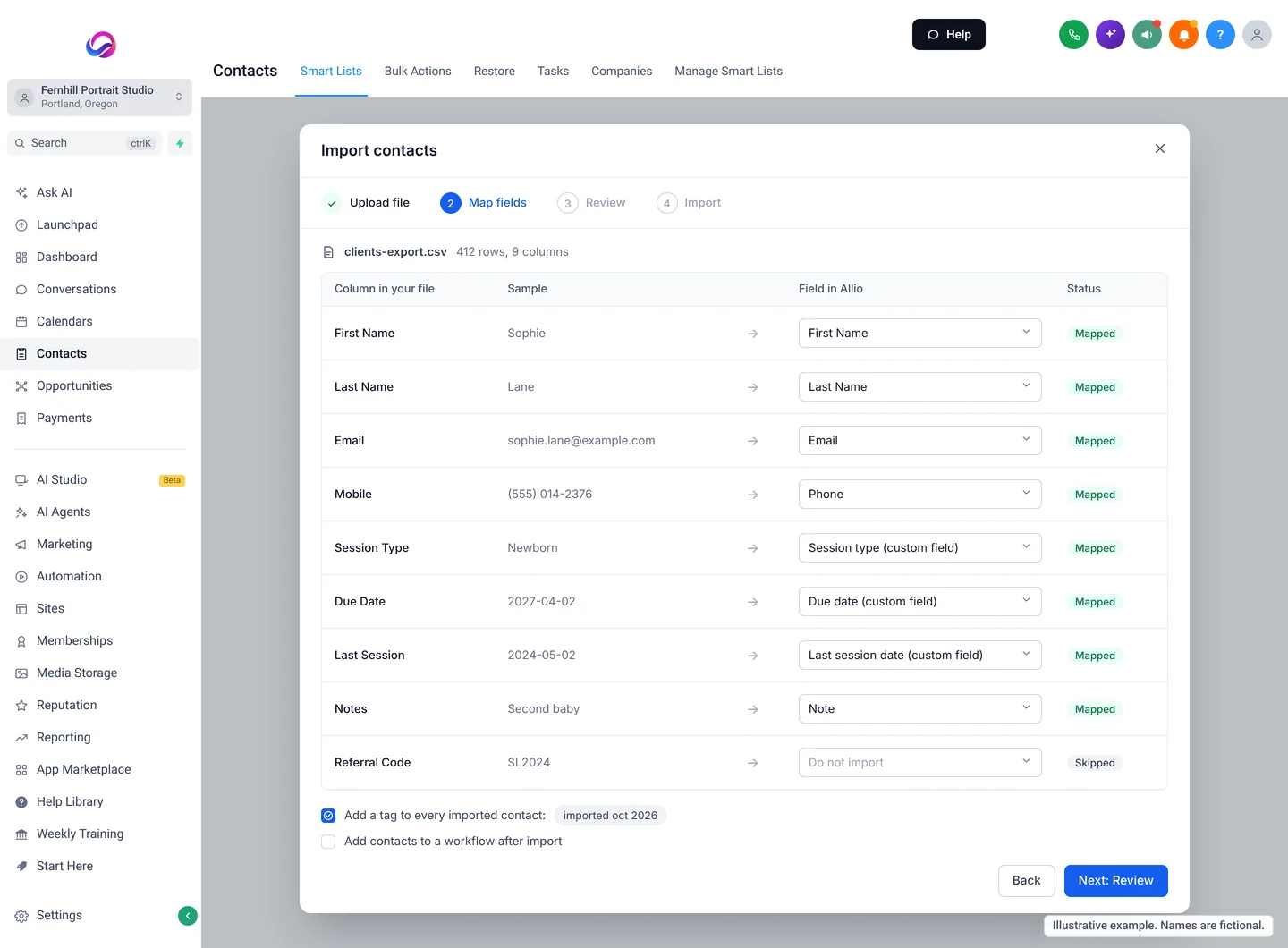
One caution: importing a contact is not the same as having their permission to market to them. Only send promotional emails or texts to people who agreed to hear from you.
Step 4: rebuild forms, templates and contracts
Start with what clients see first: your enquiry form, booking form and questionnaire. Then contracts, invoices, and the email and text templates for each stage. Use the text you saved in step 1 so nothing changes for clients except the look.
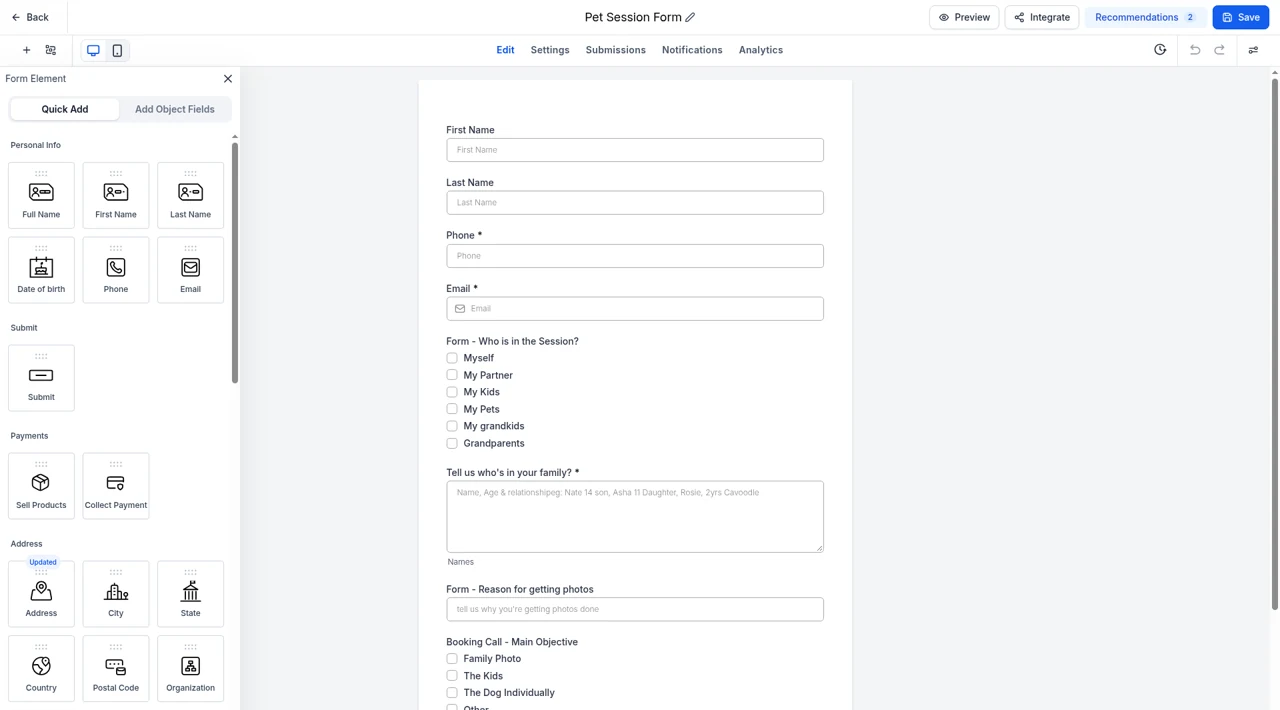
Related guides: client questionnaire, contract template and email and text templates.
Step 5: rebuild the automations you really use
Take your list of automations and rebuild them one at a time, starting with the ones that touch clients: enquiry reply, booking confirmation, reminders, after-session follow up and review request. Test each one with your own email and phone number before you switch it on for clients.
This is also the time to add what your old system couldn’t do, such as a missed call text back or AI replies to Instagram messages.
Step 6: set up your pipeline
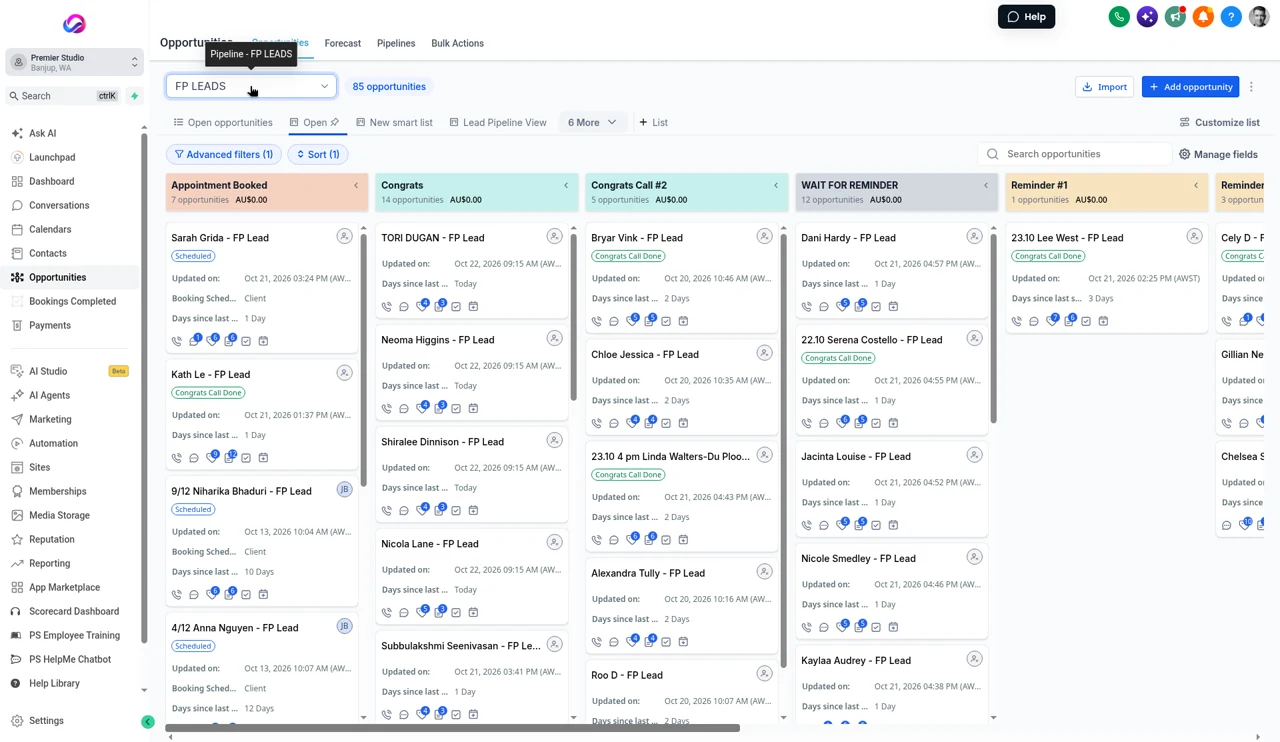
Recreate the stages a booking moves through: new enquiry, consultation, booked, session done, viewing, ordered, delivered. Move active bookings into the right stage by hand. It’s usually only a few dozen, and doing it yourself means you know each one is right.
Step 7: move or forward your phone number
If your new system includes a phone line, you can often bring your existing studio number across (called porting). It takes time, and the rules differ by country, so start early and keep the old service running until the move is confirmed. If a number can’t move, take a new number and forward the old one to it.
If you’ll text clients from a US business number, carrier verification is needed before texts send reliably, and it can take weeks. See texting verification for studios.
Step 8: switch over on a set day
Pick a date. From that day:
- New enquiries go to the new system: update your website forms, booking links, Instagram and Facebook links and Google Business Profile.
- Active bookings finish in whichever system they’re in, or move across one by one as they come up.
- Your team uses only the new inbox for new conversations.
Keep the old account open, at its cheapest plan if possible, until every active job is finished and every file is exported. Then cancel.
When to switch
Choose a quieter month, not the run into a busy season. Allow a few weeks for setup and testing, plus whatever time your phone number move needs. If you run mini sessions or a big seasonal promotion, finish it in the old system first.
Do it yourself, or get help
A solo studio with simple needs can often move in a few evenings. A studio with a team, several calendars and lots of automations may save time by paying for help. Ask any vendor what migration help is included, what it costs, and what they’ll actually move for you, before you sign up.
The switching checklist
- Contacts exported as a spreadsheet
- Contracts, invoices and questionnaire answers saved as files
- Templates copied into a document
- Automations listed
- Spreadsheet cleaned, test import done, full import done and tagged
- Forms, contracts and templates rebuilt
- Client-facing automations rebuilt and tested
- Pipeline stages set up and active bookings moved
- Phone number move started, or forwarding set up
- Texting verification submitted, if you text from a US number
- Website, booking links and social profiles updated on switch day
- Team trained on the new inbox
- Old account kept until the last active job is done
Where Allio fits
Where Allio fits: In Allio, contacts import from a spreadsheet, and calling works from the day your account is set up. Texting from a US number, new or moved across, waits for carrier registration, which can take a few weeks. You can usually move a US studio number across, which typically takes two to four weeks; in Australia and the UK porting is handled case by case. You can set it up yourself with the video library, or pay the support team for implementation, which is quoted to your studio. Comparing first? See all comparisons.
Allio is the $297 plan. AI and phone usage is billed at cost, on top of the $297.
Switching CRM questions
How long does it take to switch photography CRM?
For a small studio, setup can take a few evenings to a few weeks. Moving a phone number and texting verification can take longer, so start those early.
Will I lose my client data when I switch?
Not if you export before you cancel. Save contacts as a spreadsheet and contracts and invoices as files, then keep the old account until the last active job is done.
Can I keep my studio phone number?
Often, yes, by porting it. The rules and timing differ by country. If it can’t move, forward the old number to the new one.
Should I move finished projects?
Usually not. Export and archive them as files. Move clients, leads, active bookings and the templates you use.
Can I email all my imported contacts?
Only those who agreed to hear from you. Importing a contact isn’t the same as having marketing permission.
What's the best time of year to switch?
A quieter month, after any big seasonal promotion has finished.
Move your studio across, calmly.
The trial is seven days, card required, and you can be in within minutes.
Want the story first? Read who built Allio and why, or see what a call about Allio covers.
$297 per month. Card required. AI and phone usage is billed at cost, on top of the $297.